How to Use QR Generator: The Complete Guide to Creating, Styling, and Tracking QR Codes
Everything you need to know about creating, styling, printing, and tracking professional QR codes for businesses, restaurants, and marketing campaigns.
QR codes have become the primary bridge between physical marketing collateral and digital customer experiences. Whether you are adding a contactless vCard to your business card, printing a hygienic menu for your bistro, or tracking billboard ROI, this complete guide walks you through every step of using QR Generator Ishvanihub.
Prefer an interactive visual tutorial?
Visit our dedicated standalone visual walkthrough with interactive jump navigation.
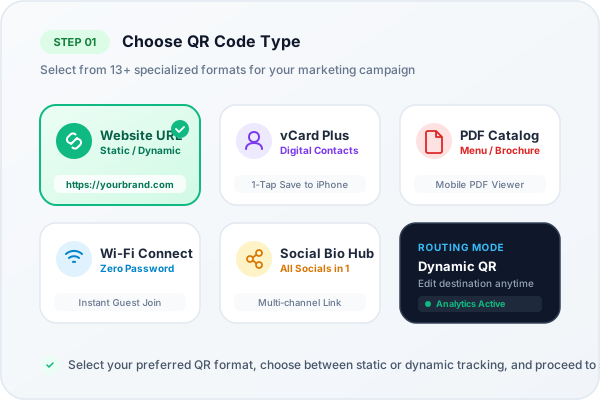
Step 1: Selecting from 13+ specialized QR formats and choosing between Static and Dynamic modes
Step 1: Choose Your QR Code Type & Campaign Goal
Our platform provides 13+ specialized QR formats engineered for specific marketing and communication use cases:
- Website URL: Direct scanners to any website link, landing page, portfolio, or eCommerce shop.
- Digital vCard Plus: Save your contact info (phone, email, job title, address) directly into the scanner's iPhone or Android address book with 1 tap.
- PDF Catalogs & Menus: Upload PDF documents so customers can browse digital menus, assembly instructions, or brochures on their personal phones.
- Wi-Fi Connect: Allow visitors to connect to guest wireless networks instantly with zero password typing.
- Social Bio Hub: Group your Instagram, TikTok, YouTube, LinkedIn, and shop links onto one beautiful mobile bio tree.
Static vs. Dynamic Decision
Static QR codes are permanent, lifetime codes where data is encoded directly into the pixel matrix. They never expire and require no cloud redirect, but cannot be changed once printed. Dynamic QR codes route through our high-speed edge redirection, allowing you to edit the destination link anytime without reprinting your flyers, and unlocking real-time scan analytics (scans over time, operating systems, devices, and cities).
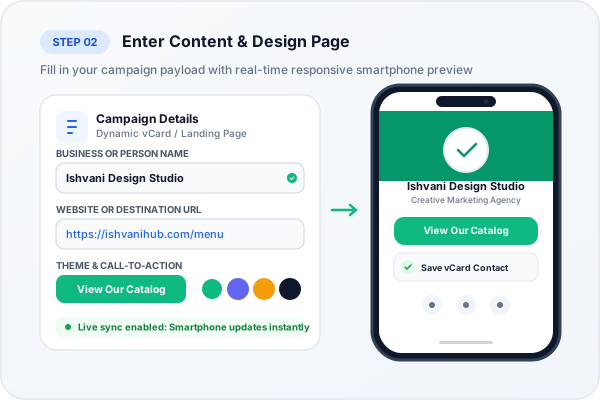
Step 2: Form input with real-time responsive smartphone preview
Step 2: Enter Content & Build Your Mobile Landing Page
Provide your destination payload in the intuitive form fields. For dynamic types, the virtual smartphone viewport on the right mirrors changes in real-time:
- Enter business names, phone numbers, and social channel handles.
- Customize theme colors, hero banner gradients, and avatar headshots.
- Add interactive call-to-action buttons like "Download PDF" or "Save vCard Contact".
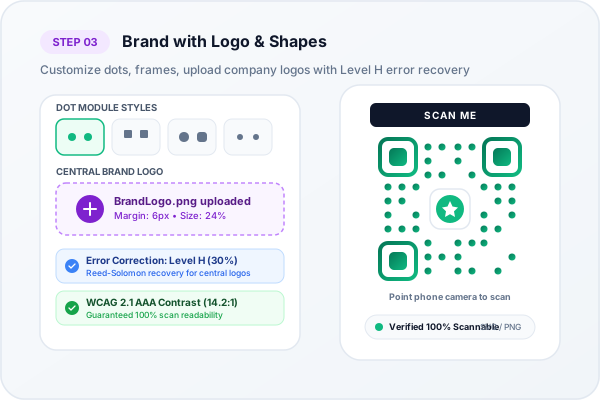
Step 3: Customizing matrix dots, frames, brand colors, and central logo with Level H error recovery
Step 3: Brand with Shapes, Custom Colors & Company Logo
Branded QR codes have been proven to yield up to 150% higher scan engagement compared to generic black-and-white grids:
- Dot Module Shapes: Choose from 19 unique patterns including rounded dots, classy pixels, and fluid drops.
- Corner Frames & Pupils: Customize the three large finder eyes with 14 frame styles and 18 pupil shapes.
- Upload Brand Logo: Insert a PNG, SVG, or JPEG logo into the center. Our system automatically configures Reed-Solomon Level H Error Correction (30%) to protect scan integrity.
- WCAG 2.1 Contrast Safeguard: The automated live contrast analyzer verifies that your foreground and background colors meet optical scan thresholds.
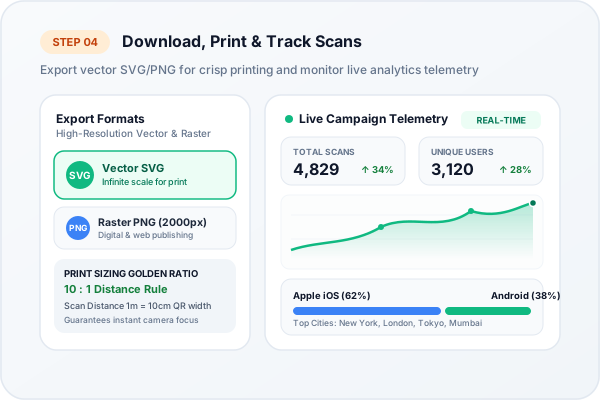
Step 4: Commercial vector SVG downloads and real-time scan analytics dashboard
Step 4: Export Vector Formats & Monitor Live Scan Analytics
Once your design is ready, export print-ready assets and monitor customer engagement:
- Vector SVG: Download infinite-resolution vector SVG for commercial printing on billboards, packaging, merchandise, and vehicle wraps.
- High-Resolution PNG (2000px): Download high-res PNG for web banners, email signatures, and desktop laser printing.
- Live Telemetry Dashboard: Track total scan counts, unique devices, mobile OS share (iOS vs. Android), top cities, and peak scanning hours.
- Export CSV Reports: Download spreadsheet reports for stakeholders and marketing ROI analysis.
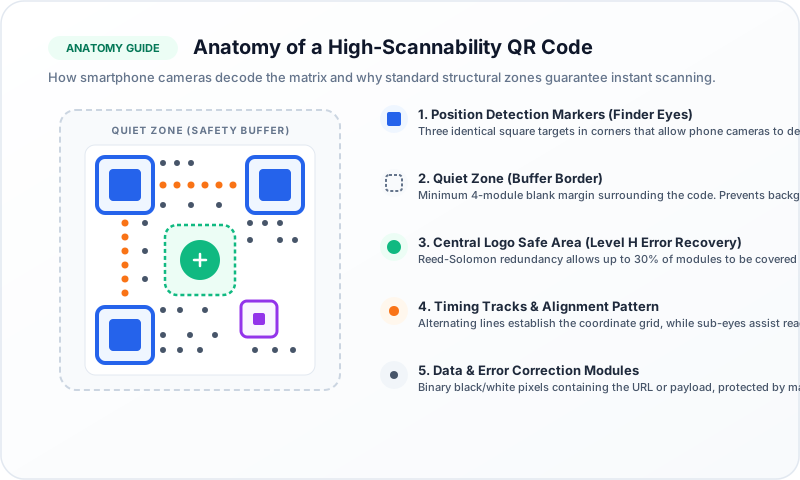
QR Code Anatomy: Key structural zones including Finder Eyes, Quiet Zone buffer, and Level H center
Commercial Print Sizing: The 10:1 Golden Rule
To guarantee that your QR code scans effortlessly in the real world, calculate its size using the 10:1 scanning distance rule:
Recommended QR Width = Expected Scan Distance ÷ 10
- Business Cards (30 cm distance): Minimum 2 x 2 cm (0.8 x 0.8 inches).
- Restaurant Tent Cards (50 cm distance): Minimum 3 x 3 cm (1.2 x 1.2 inches).
- Window Decals & Posters (1.5 m distance): Minimum 15 x 15 cm (6 x 6 inches).
- Outdoor Billboards (10 m distance): Minimum 1 x 1 meter (3.3 x 3.3 feet).
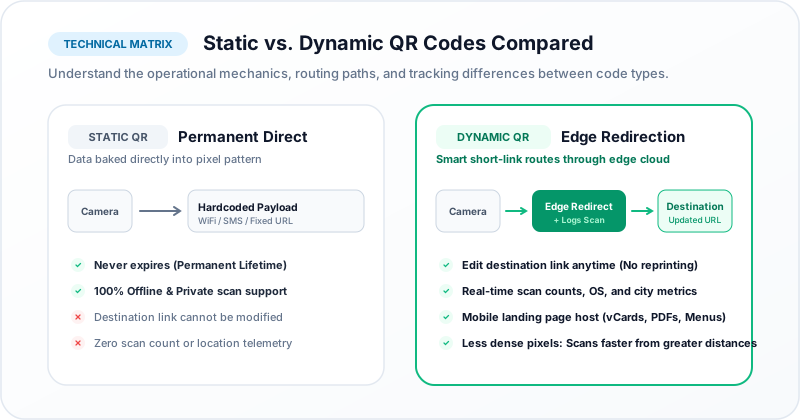
Static vs Dynamic QR Codes: Flow comparison of direct payload versus edge cloud redirection
Summary Checklist Before You Print
- Test your code with both an iPhone (iOS Camera) and an Android device.
- Ensure the white quiet zone buffer is preserved around all four sides.
- Export in vector SVG format for commercial print shops.
- Double-check destination URLs if using static mode, or verify dynamic redirect routing.
Ready to Create Your Custom QR Code?
Start generating scannable QR codes with custom colors, company logo, and lossless vector SVG export in seconds.